Tasks & My tasks
Every project is made of tasks. Your team can work in them together — assign them, tick off a checklist, attach files and talk in the comments — and My tasks gathers everything that's yours, across every project, into one list.
A task's panel
Click a task's name (in a project's Kanban or Task list, or in My tasks) and its panel opens beside the page.
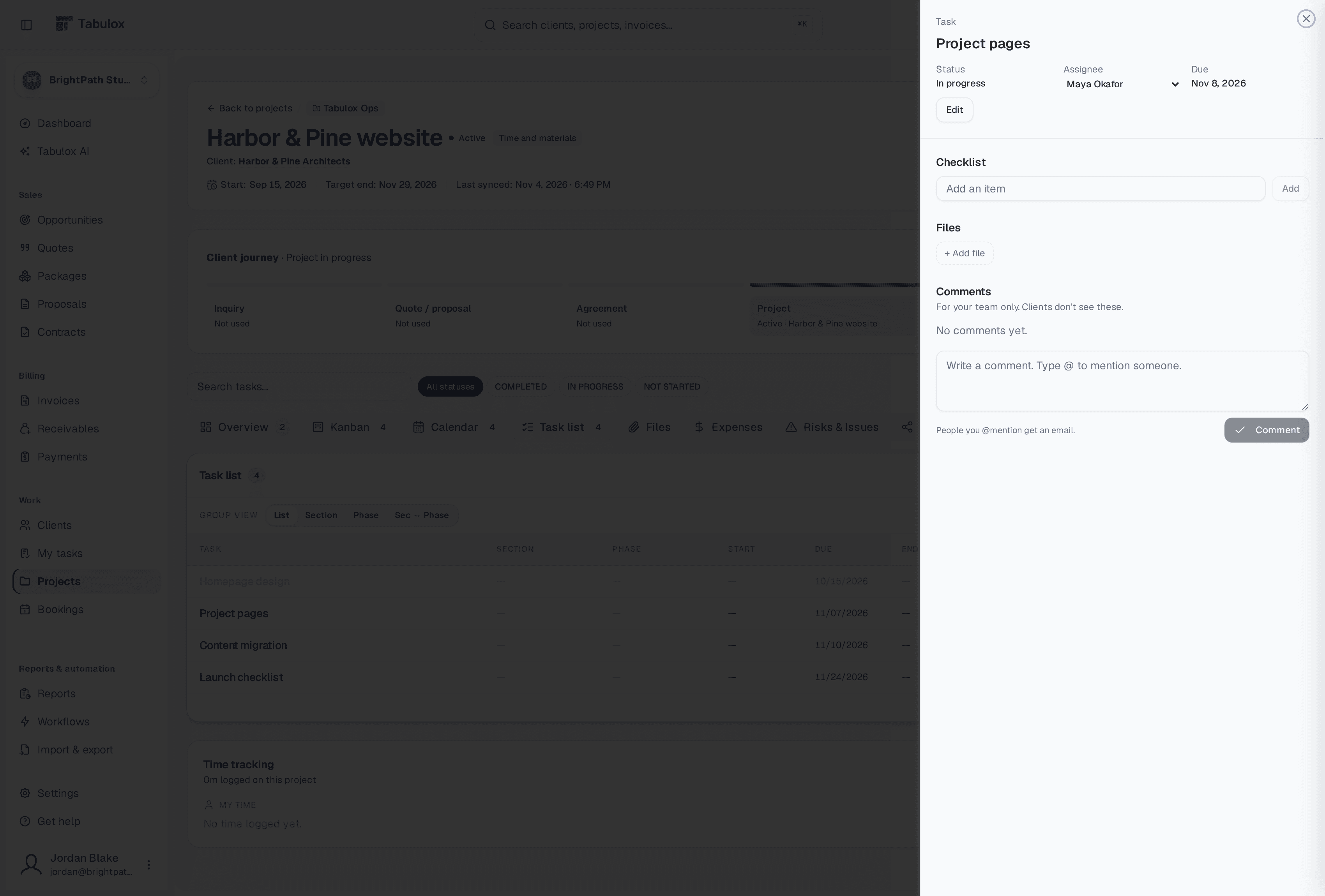
- Status, assignee and due date at the top. When someone else assigns a task to you, you get an email. Edit opens the full task to change the rest.
- Checklist — break the task into steps. Its progress shows on the task's row and card.
- Files — attach what the task needs.
- Comments — for your team only; clients never see them. Type @ to mention someone, and they get an email. The comment count shows on the task's row and card.
A task panel has its own link, so you can send a teammate straight to it.
Who can do what
Any member of the workspace can update a task, so whoever it's assigned to can mark their own work done. Only the person who created the project, or an admin, can delete a task. Tasks can only be assigned to people in the workspace.
My tasks
My tasks in the sidebar is your list of everything that's yours.
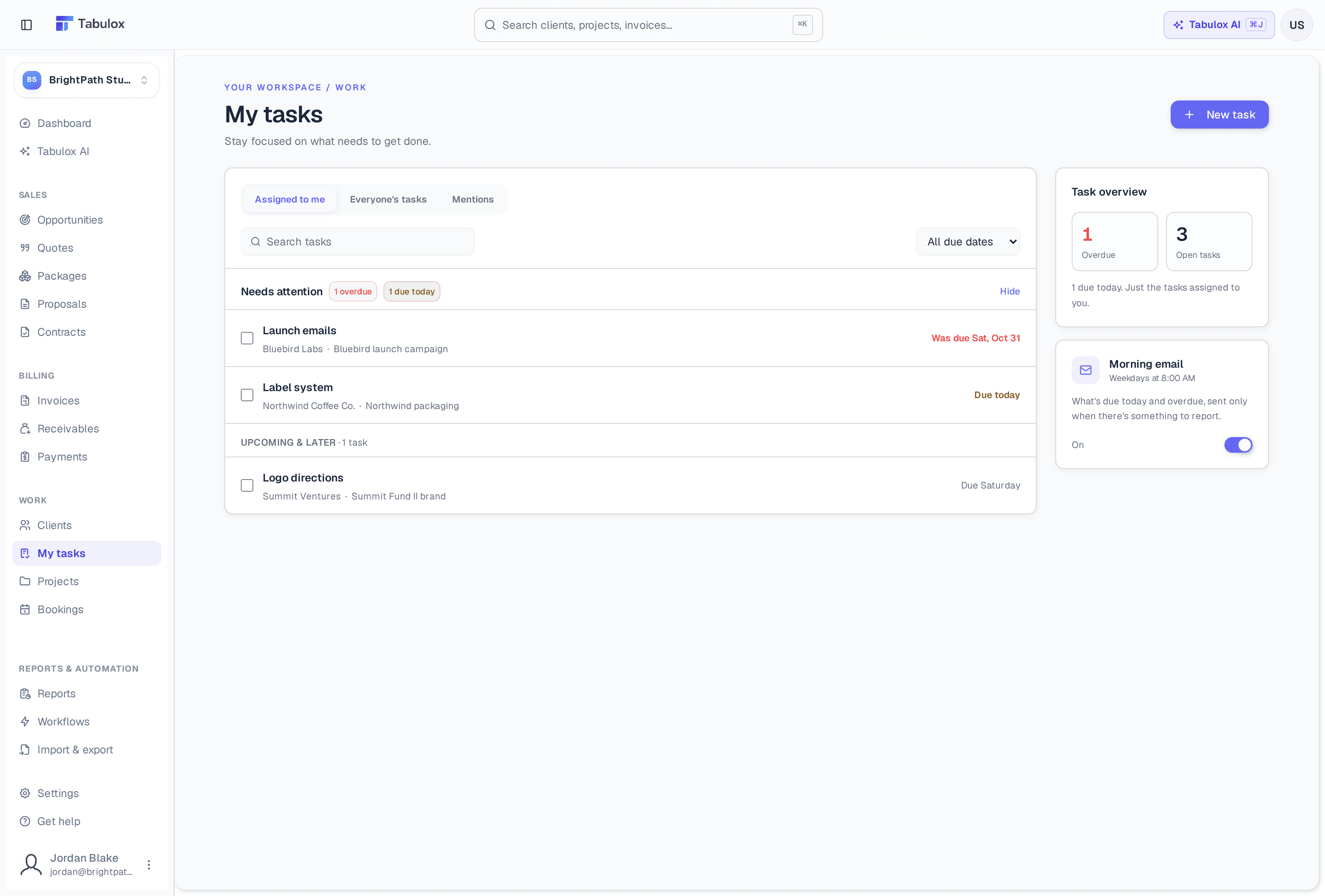
- Assigned to me — your tasks across every project. Needs attention at the top lists what's overdue and due today; then what's coming up and later. Each task shows its client and project.
- Everyone's tasks — the whole team's, for when you're planning or covering for someone.
- Mentions — tasks where someone @mentioned you.
Tick a task's box to complete it right there. Search, and filter by due date. New task adds one to an open project (a name and an optional due date), assigned to you.
On the right, Task overview counts what's overdue and open.
The morning email
On weekdays at 8:00 in the morning (in your own time zone), Tabulox emails you what's due today and overdue. It's only sent when there's something to report, at most once a day. Switch it off with the Morning email toggle on My tasks.
Tabulox AI can add tasks too — for example a follow-up on an opportunity, or a whole project scoped into phases and tasks — and the Dashboard shows milestones due this week.