Clients
Every business you work with lives here — one record per client, and every opportunity, quote, proposal, contract, invoice, and project you create attaches back to it. Clients is the anchor the rest of the app hangs off of.
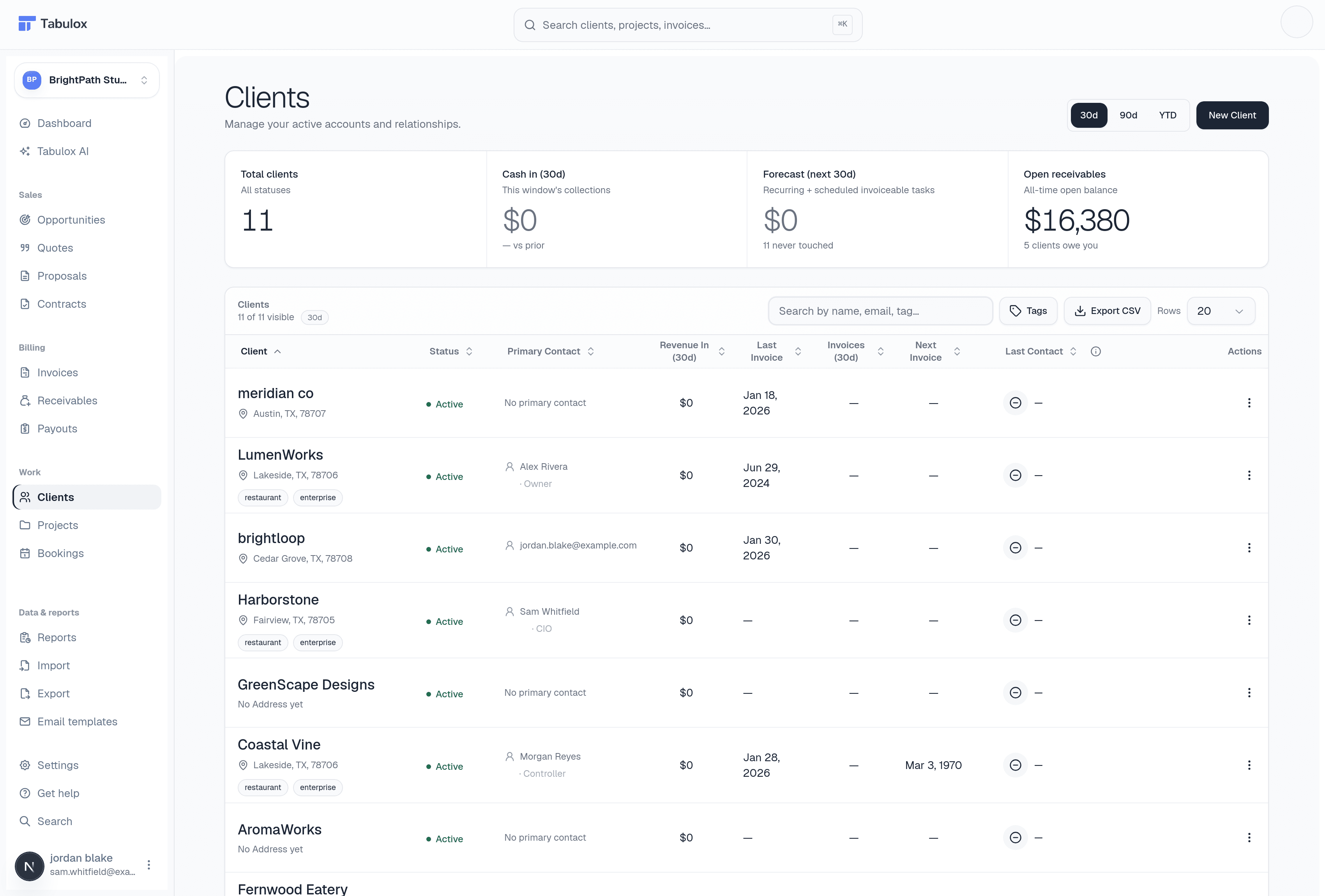
The client list
The four cards at the top summarize your whole client base for a selected window (30d / 90d / YTD, switchable top-right):
- Total clients
How many clients you have, and how many are currently active vs. gone stale (no activity in 45+ days).
- Cash in
Payments actually collected from clients in the selected window, with a trend line against the prior window of the same length.
- Forecast (next 30d)
Expected income from recurring and scheduled invoiceable work already set up on active projects — not a guess, it's summed from real Projects tasks marked invoiceable.
- Open receivables
Everything currently unpaid across every client, and how many clients owe you money right now. Same number that drives Receivables.
Below that, the table lists every client with their status, primary contact, revenue and invoice activity in the selected window, next invoice date, and last time you were in touch. Search by name, email, or tag, and tag clients freely (e.g. "enterprise", "restaurant") to group and filter them later. Click New Client to add one manually — the fastest path is usually letting an accepted Opportunity or Quote create the client for you automatically.
Creating a client
New Client opens a guided, four-step flow — everything needed to start invoicing this client correctly, in one pass:
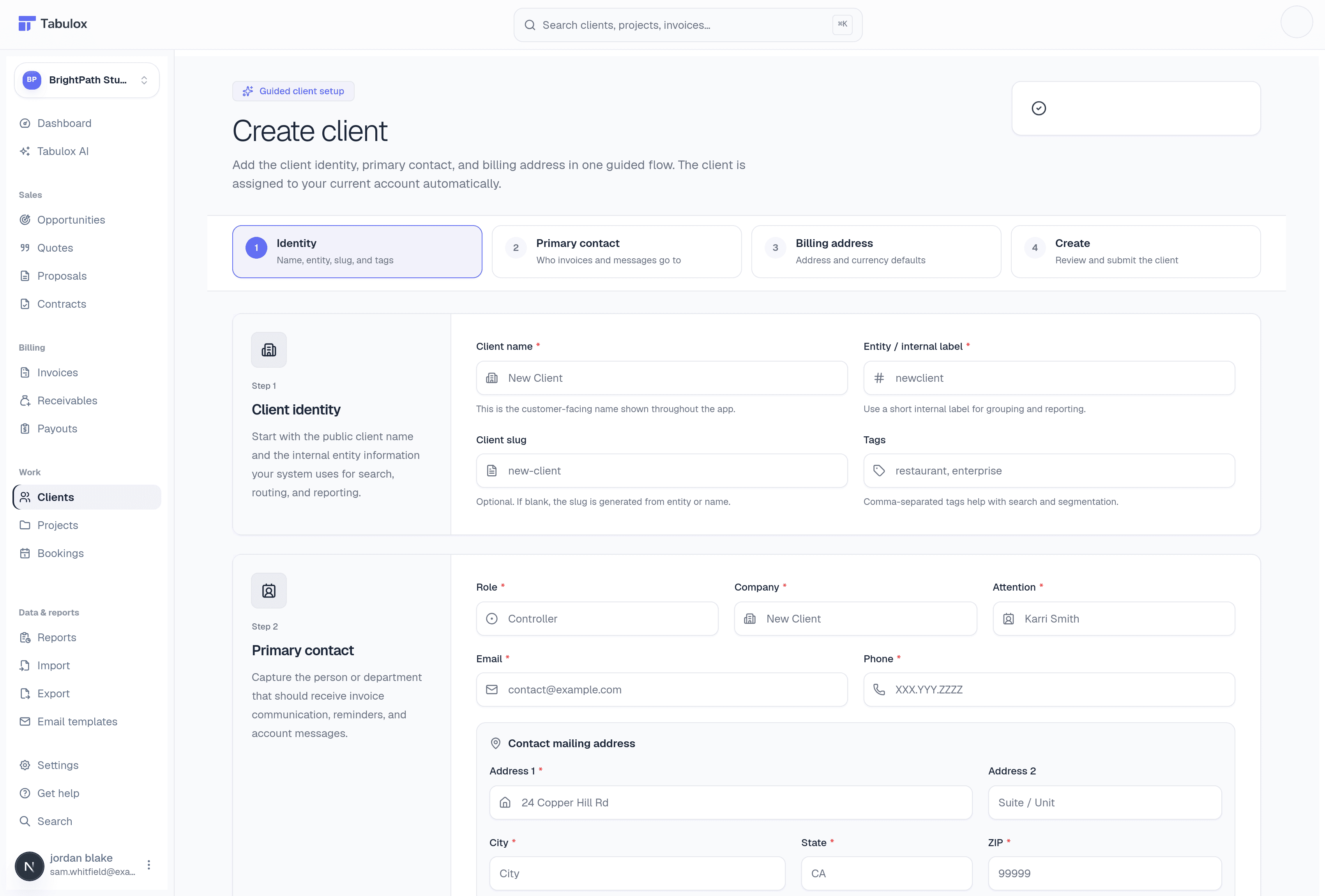
- Identity
Client name (the customer-facing name shown throughout the app), an entity/internal label for grouping and reporting, an optional slug, and tags.
- Primary contact
Who invoices and messages go to — role, company, attention (the contact's name), email, phone, plus their mailing address.
- Billing address
Address and currency defaults used to pre-fill new documents for this client.
- Create
Review everything on one screen before submitting.
Filling in the primary contact and billing address here means every quote, invoice, or proposal you create for this client afterward pre-fills correctly — you're only entering their details once.
The client detail page
Click into any client and you land on an Overview tab built around one question: what do they owe, and what's next. It shows an A/R aging breakdown (current, 30/60/90+ days unpaid), quick-action buttons to create a quote or invoice for this client without leaving the page, and their default contact/billing info used to pre-fill new documents.
From this same page you can also invite a client to the client portal — a separate, client-facing login where they can view their own invoices, quotes, and project updates. Portal documentation is coming soon; the invite happens from the client's Settings tab.
Three other tabs round it out:
- Contacts — every person at this client, with a designated primary contact used by default on new documents and reminder emails.
- Addresses — billing/shipping addresses, same primary-address concept.
- Settings — core info (name, entity), PDF preferences for documents sent to this client, and reminder/portal-access controls.
Set a primary contact and address once per client and every new quote, invoice, or proposal you create for them will pre-fill correctly — no retyping their billing details each time.