Contracts
Contracts is where you send agreements out for signature and track who's actually signed. Unlike quotes and proposals, a contract isn't about pricing — it's the legal/formal side of a deal.
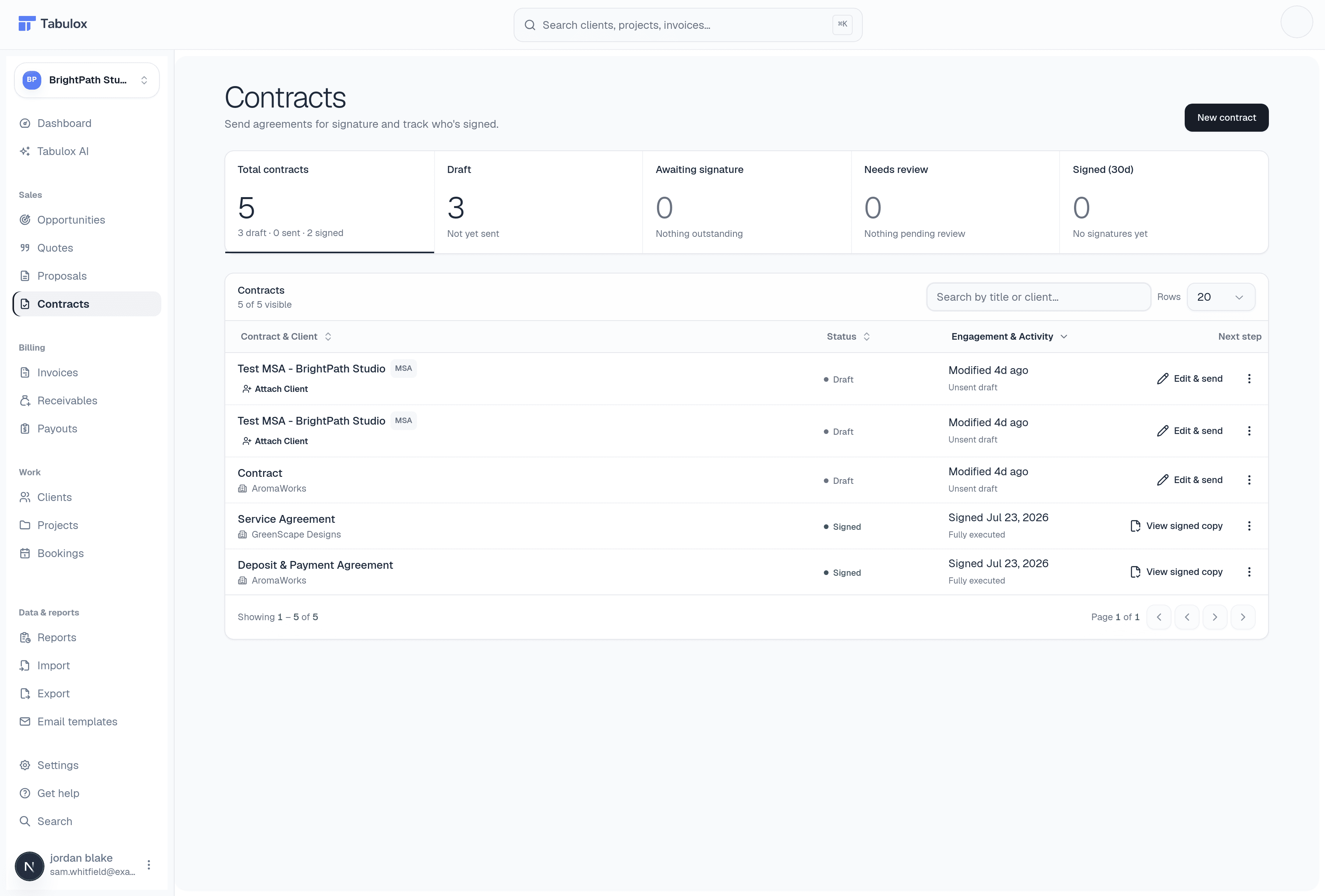
KPI cards double as filters
The five cards at the top — Total contracts, Draft, Awaiting signature, Needs review, Signed (30d) — aren't just numbers, they're clickable. Click one to filter the list below to exactly that slice; click it again (or Total) to clear the filter.
Needs review is the one worth knowing about specifically: it counts contracts where a client has proposed changes to the contract text that you haven't reviewed yet (see below).
Status pills
Same pattern as Proposals: Draft, Sent (Unread), Viewed Nx (opened, with a count), and Signed.
Client-proposed changes ("Needs review")
Clients aren't limited to just signing or not signing — they can propose edits to the contract's clauses. When they do, that contract shows a Review Changes action instead of the usual send/reminder button, and the row's Engagement column shows how many changes are pending. Opening the contract lets you accept or reject each proposed change individually before it goes back to the client.
Row actions
- Draft → Edit & Send
Finish the contract and send it out.
- Sent, no pending changes → Send Reminder
Re-sends the signature request.
- Sent, with proposed changes → Review Changes
Takes you straight to the pending redlines.
- Signed → View Signed Copy
Opens the final executed PDF — the actual signed document, not just the editor view.
If a contract has no client attached, you'll see the same Attach Client pill used on Proposals — pick one from Clients without leaving the list.
Creating a contract
Click New contract. Unlike quotes and proposals, a contract carries no pricing to bootstrap from — it's built from a title and a set of clauses.
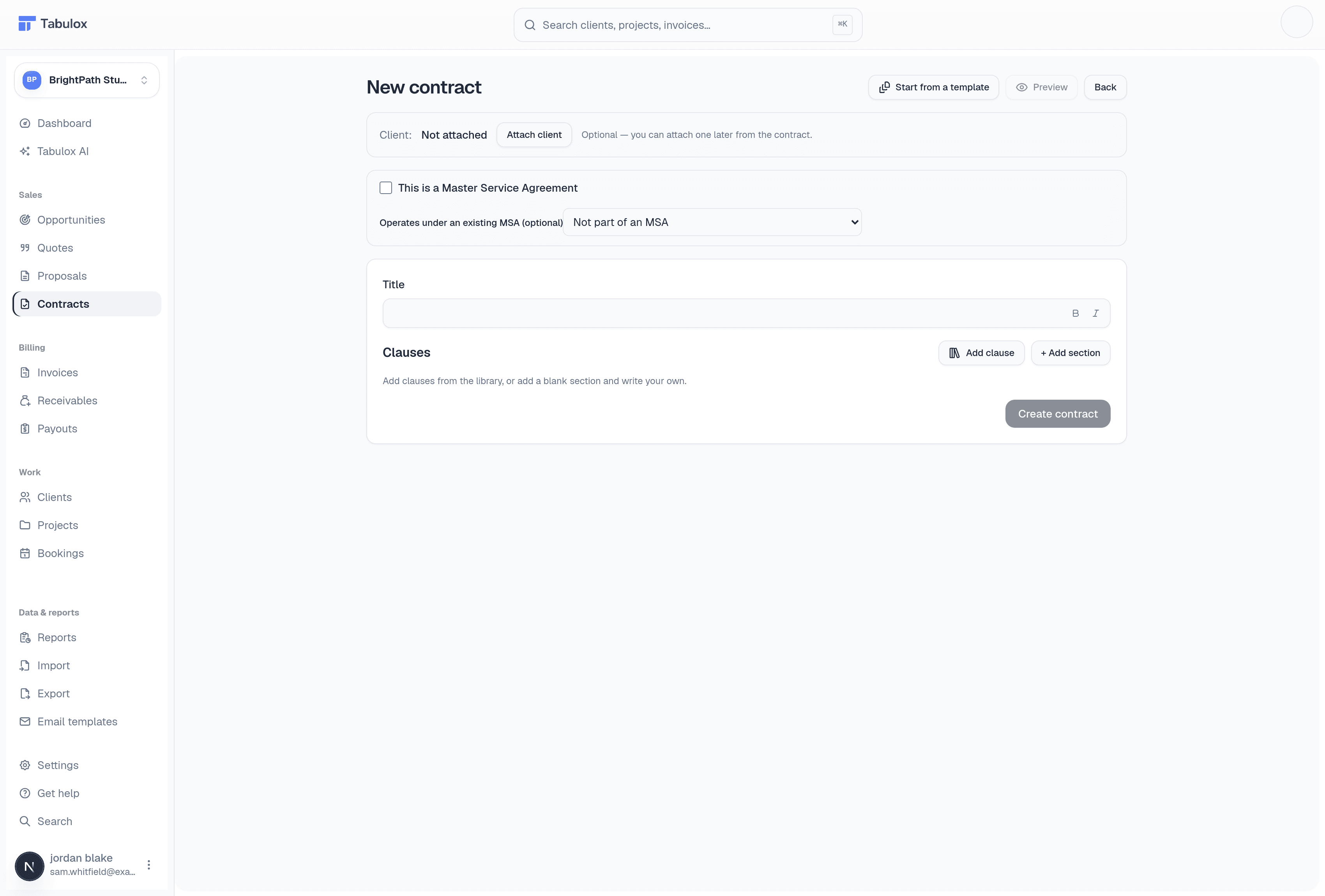
- Title
What the contract is called — shows on the document itself.
- Clauses
Add clauses from your reusable clause library (Add clause), or add a blank section and write one from scratch (Add section). Sections are reorderable, so you can restructure without retyping anything.
- Client
Optional at creation — Attach client picks one now, or you can do it later from inside the contract.
Start from a template (top right) applies a complete starter structure — a full set of clauses already in a sensible order — instead of building one section at a time. Preview shows the live document exactly as it'll render before you send it.
Building a reusable clause library once (Settings) pays off every time you create a new contract — you're assembling from a menu instead of writing boilerplate legal language from scratch.