Invoices
Invoices is where you create, send, and collect on billing documents — directly, or converted from an accepted quote or proposal. Payments come in through Stripe (card and ACH), and once collected, that money is what shows up on Payouts.
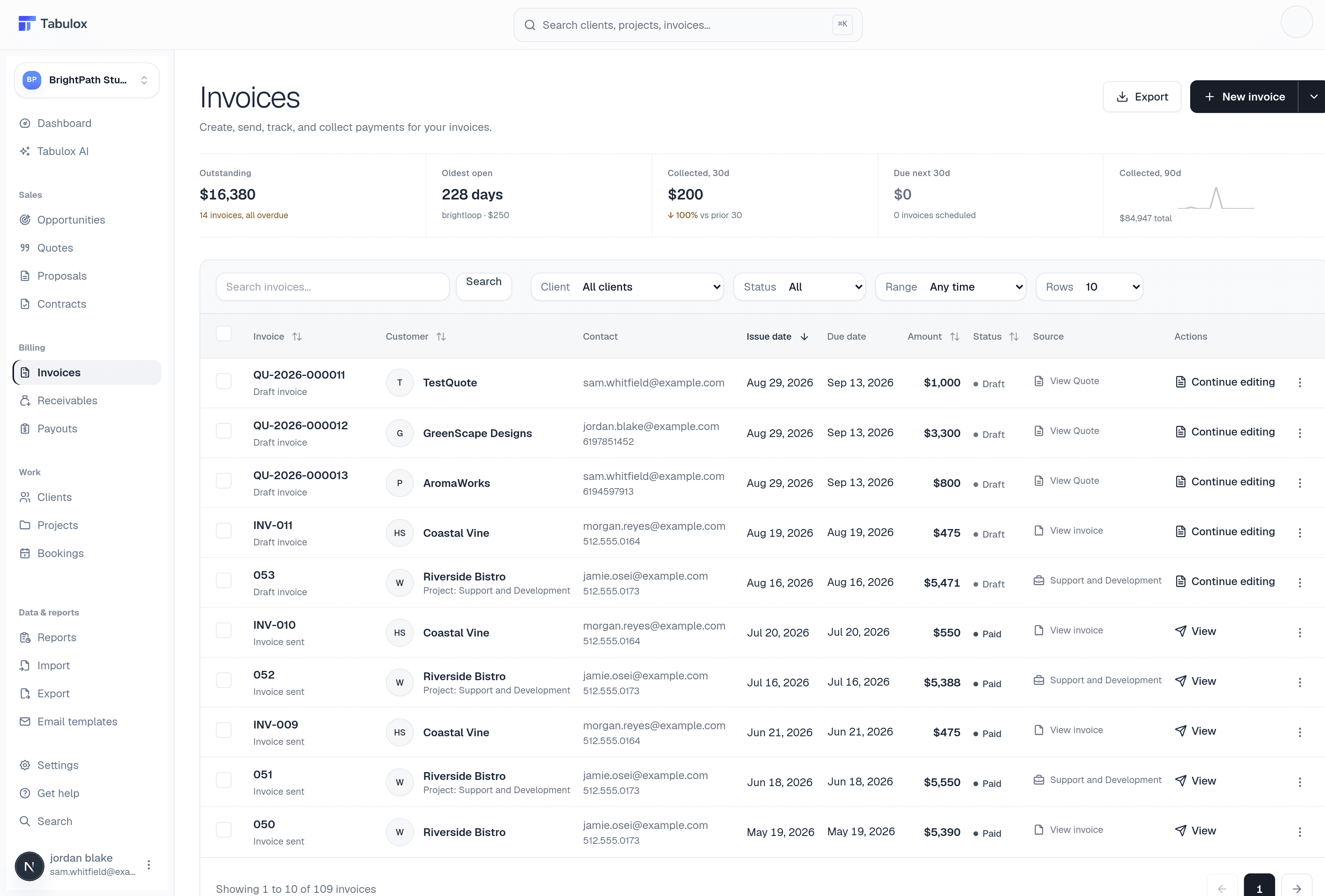
The three summary cards
- Outstanding
Every sent or overdue invoice that hasn't been paid yet, plus how many invoices that spans. This is the same figure that anchors Receivables — Invoices shows it as a snapshot, Receivables is where you work the list.
- Rolling revenue
What you've invoiced in the last 30/60/90 days, with a small trend chart under each window and a badge comparing this 30-day window to the prior one (e.g. "↑ 12% vs prior 30 days"). That comparison is a real period-over-period number, not a guess — it only appears once there's enough history to compare against.
- Upcoming
Invoices due in the next 30 days, laid out on a small timeline with actual due dates and amounts, so you can see what's coming without doing the math yourself.
The line above the cards — "Metrics and list reflect your current filters" — matters: if you filter the table down to one client or a date range, these three cards recalculate to match. They're not a fixed company-wide total.
Filtering the list
Above the table: a search box (title/client/invoice number), and four filters — Client, Status, Range (any time / last 30/60/90 days / this month / last month), and Rows per page. Filters apply instantly and update the URL, so a filtered view is bookmarkable/shareable.
The table
Each row shows the invoice number and status pill, the customer (with avatar), a contact (email/phone pulled from the client record), issue and due dates, the amount, a Source badge (e.g. whether it came from a project or was created directly), and an action — Continue editing for drafts, or View once it's been sent.
Click the checkbox column to select rows for bulk actions. The ⋮ menu on each row opens:
- Send / Resend / Send copy — email the invoice (label changes based on whether it's already been sent).
- Mark paid — record a payment manually (for cash, check, or anything collected outside Stripe). Disabled once an invoice is already paid or cancelled.
- Duplicate… — start a new invoice pre-filled from this one.
- Edit… — available while the invoice is still editable (drafts and unsent invoices).
- Add note… — attach an internal note, not visible to the client.
- Cancel / delete — voids the invoice. Disabled if it's already cancelled, and asks for confirmation first since it can affect linked records.
New invoice (top right) opens the invoice builder directly. The small chevron next to it has more creation options — worth checking if you want to start from a template or an existing client's default line items rather than a blank invoice.
Creating an invoice
A client comes first — an invoice always belongs to one. Click New invoice and you land on a picker:
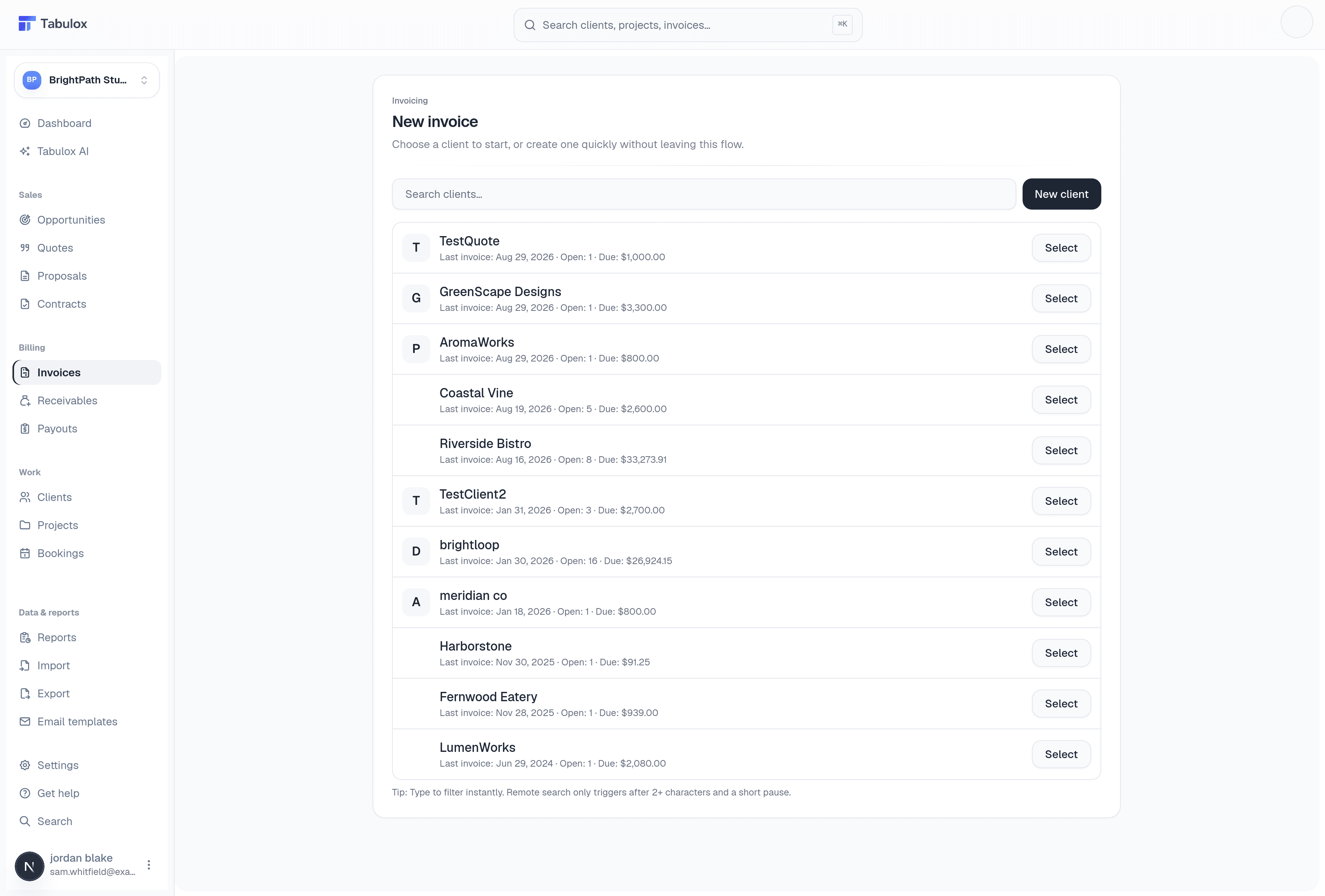
- Pick an existing client
Search by name, or select straight from the list — each row shows their last invoice date, how many are open, and what's due.
- Or quick-create one
Click New client to add one inline without leaving the flow: Client name, Entity, Client key, Email, and Phone — only the name is required, so you can start billing before the client record is fully fleshed out.
Once a client is set, you move into the line-item builder — add items, set payment options (card/ACH via Stripe, manual, or both), and save as a draft or send immediately.
The quick-create client here is intentionally minimal. Fill in the rest of their details (address, additional contacts) later from Clients — nothing about invoicing depends on it being complete up front.