Proposals
A proposal is a richer, brandable version of a quote — cover image, written sections, your pricing, and a formal acceptance step the client completes online. Use it when the pitch itself needs to do some selling, not just list line items.
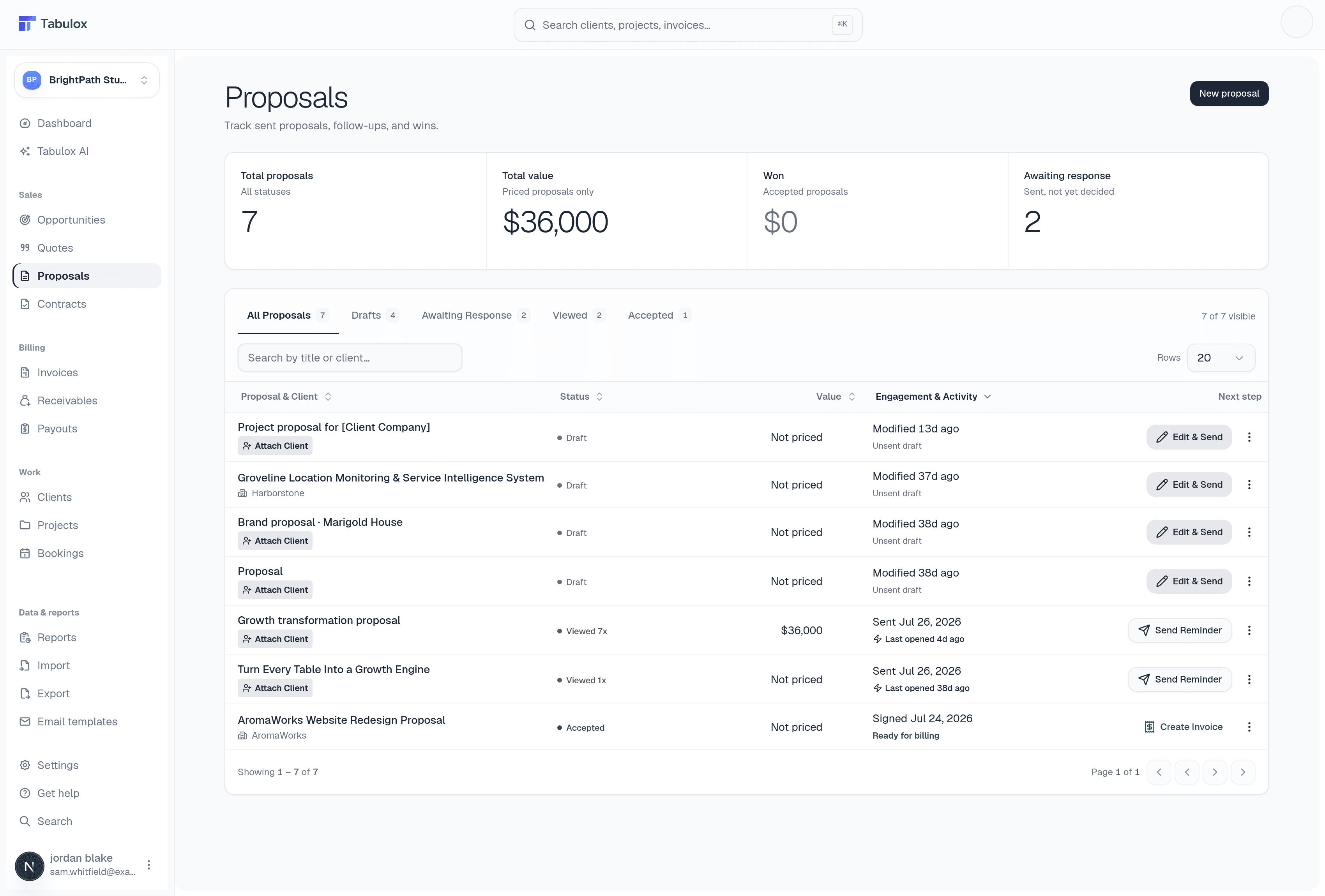
Stage tabs
All Proposals, Drafts, Awaiting Response (sent, no reply yet), Viewed (the client has actually opened it — a subset of "Awaiting Response," not a separate status), and Accepted.
Status pills
Each row's status pill tells you more than a plain Draft/Sent/Accepted would:
- Draft — not sent yet.
- Sent (Unread) — delivered, but the client hasn't opened it.
- Viewed Nx — opened, with the exact number of times, so you can tell a proposal someone's actively re-reading from one they glanced at once.
- Accepted — signed off.
Engagement & Activity
This column is what turns "Sent" from a dead end into something actionable:
- For a draft, it shows how long ago you last touched it.
- For a sent, unread proposal, it shows how long it's been sitting — flagged as stale in red once it passes 14 days with no view.
- For a viewed proposal, it shows when it was last opened, so you know if someone's looking at it right now versus three weeks ago.
- For an accepted proposal, it tells you whether it's already been invoiced or still needs to be.
Row actions
The primary action button changes based on where the proposal stands:
- Draft → Edit & Send
Jumps into the editor to finish and send it.
- Sent → Send Reminder
Re-sends the proposal email without leaving the list — useful for a quick nudge on something that's gone quiet.
- Accepted, not yet invoiced → Create Invoice
Generates an invoice from the proposal's priced total in one click.
- Accepted and invoiced → View Invoice
Jumps straight to the invoice that was created from it.
If a proposal has no client attached yet, you'll see an Attach Client pill instead of a client name in that row — click it to pick one from your Clients list without opening the proposal itself.
Proposals are usually built from an accepted quote (via "Convert to proposal"), but you can also start one from scratch when you don't have pricing worked out yet — the pricing card just won't show until you link a quote to it.
Creating a proposal
Click New proposal and choose a starting point:
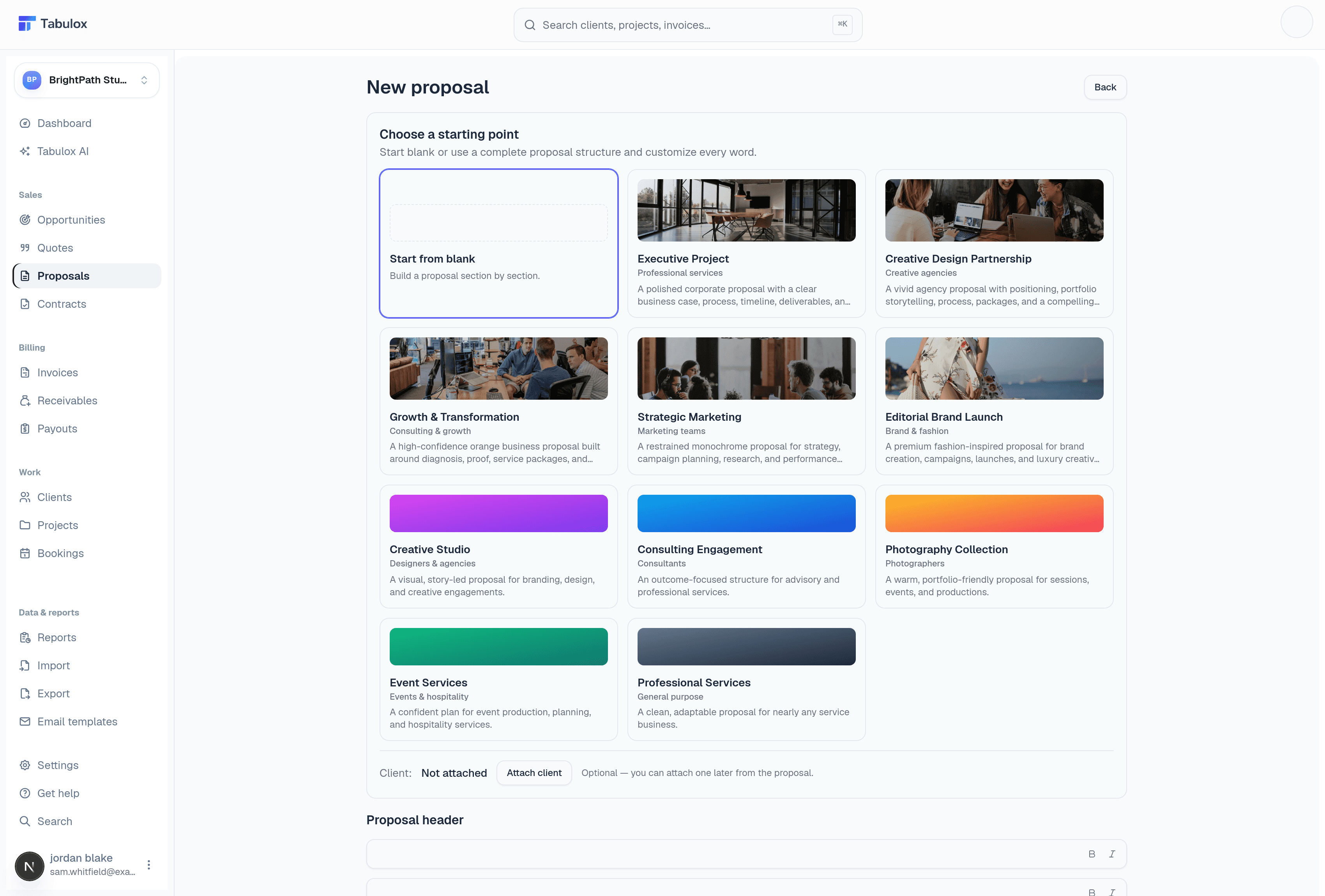
- Start from blank
Build the proposal section by section yourself.
- From a quote
Arriving with
?quoteId=pre-fills the proposal from that quote's overview and scope — the fastest path once pricing already exists. - From an opportunity
Arriving with
?opportunityId=pulls in the opportunity's overview, scope, and attached client. - A starter template
The gallery (Executive Project, Creative Design Partnership, Growth & Transformation, and more) gives you a complete, styled proposal structure — cover, sections, pricing layout — to customize instead of writing from nothing.
You can attach a client at creation time (Attach client, bottom of the picker) or leave it unattached and pick one later from inside the proposal.
Whichever starting point you pick, you land in the same section-by-section editor afterward — the choice only affects what's pre-filled, not the editing experience itself.