Quotes
A quote is where pricing actually happens: line items, quantities, discounts, and tax, bundled into a document a client can review and accept. It's the pivot point of the sales side of Tabulox — most opportunities become a quote before they become anything else.
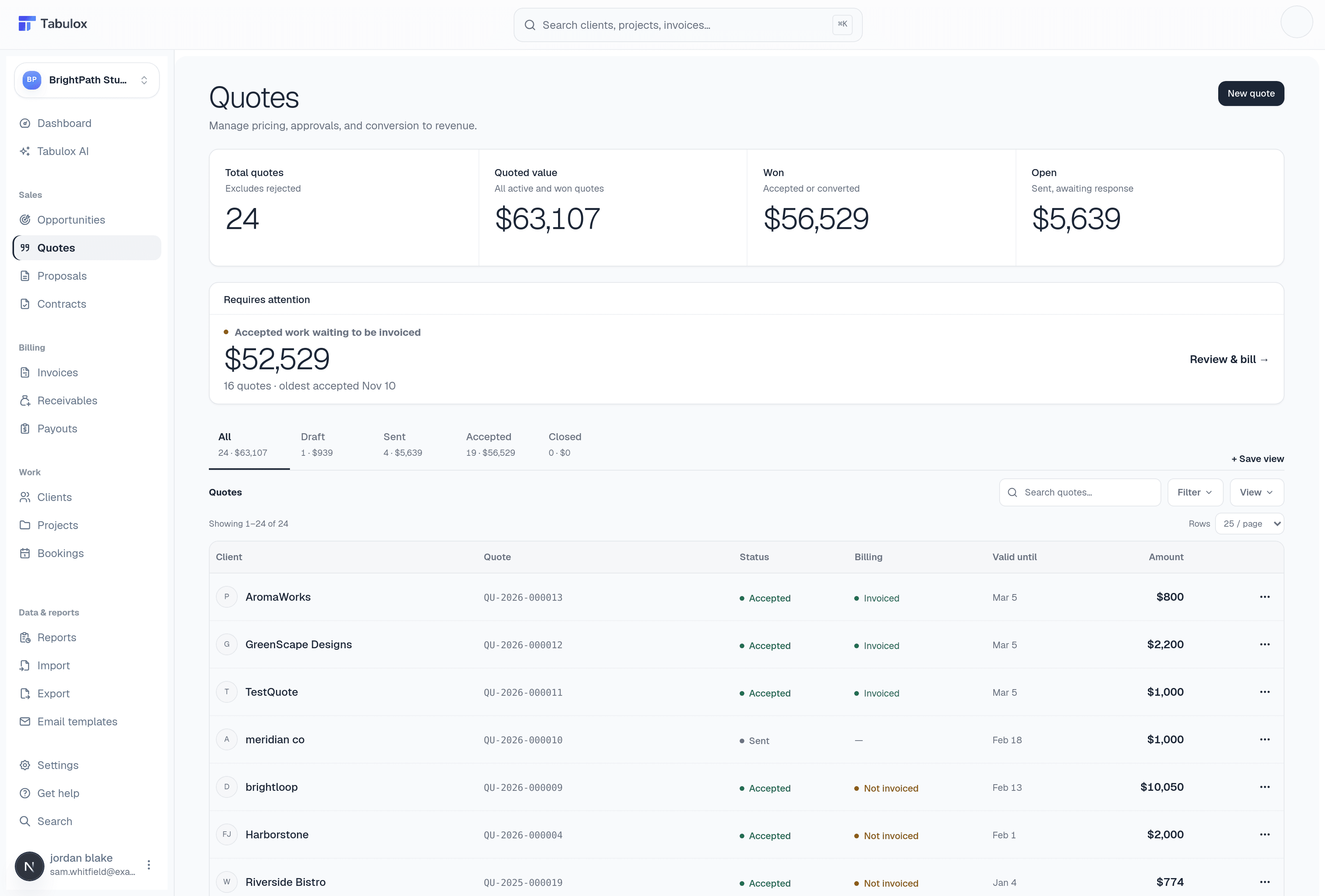
The four KPI cards
- Total Value
Every quote you've issued in the current range (excluding rejected ones), and how many quotes that represents.
- Open Quotes
Quotes that are Sent or Viewed but not yet accepted or rejected — your live pipeline waiting on a client decision.
- Accepted Quotes
The value of quotes accepted in the last 30 days — recently won work.
- Expiring Soon
Sent or Viewed quotes whose valid-until date falls in the next 14 days — a signal to follow up before the offer lapses.
Quote statuses
A quote moves through Draft → Sent → Viewed → Accepted (or Rejected/Expired). Once accepted, it can also become Converted once it's turned into an invoice.
Turning a quote into something billable
Open any quote and use its actions menu (the ··· button) for the next step:
- Edit quote — available until the quote reaches a final status (Accepted, Declined, Canceled, Expired, Completed, or Rejected).
- Convert to proposal — builds a new Proposal from this quote's client details and line items. The original quote is left untouched, so you can still send it directly if you'd rather not wrap it in a full proposal document.
- Create invoice — appears once a quote is Accepted or Completed. It turns the quote directly into a draft invoice with the same line items, no proposal required. If an invoice already exists for this quote, the same button becomes View invoice instead of creating a duplicate.
You don't have to use Proposals at all — plenty of deals go straight from an accepted quote to an invoice. Proposals are for when you want a richer, brandable document (cover image, sections, formal acceptance) instead of just the priced line items.
Quotes almost always start life attached to an Opportunity — created from the Create Quote button on an opportunity's row — and end up feeding either a Proposal/Contract or directly an Invoice.
Creating a quote
Click New Quote (top right of the list) to open the quote builder. Arriving from an opportunity, project, or client pre-fills the From and To blocks automatically — you'll see a "From [opportunity/project/client]" chip confirming what it pulled in. Starting from the list directly gives you a blank quote.
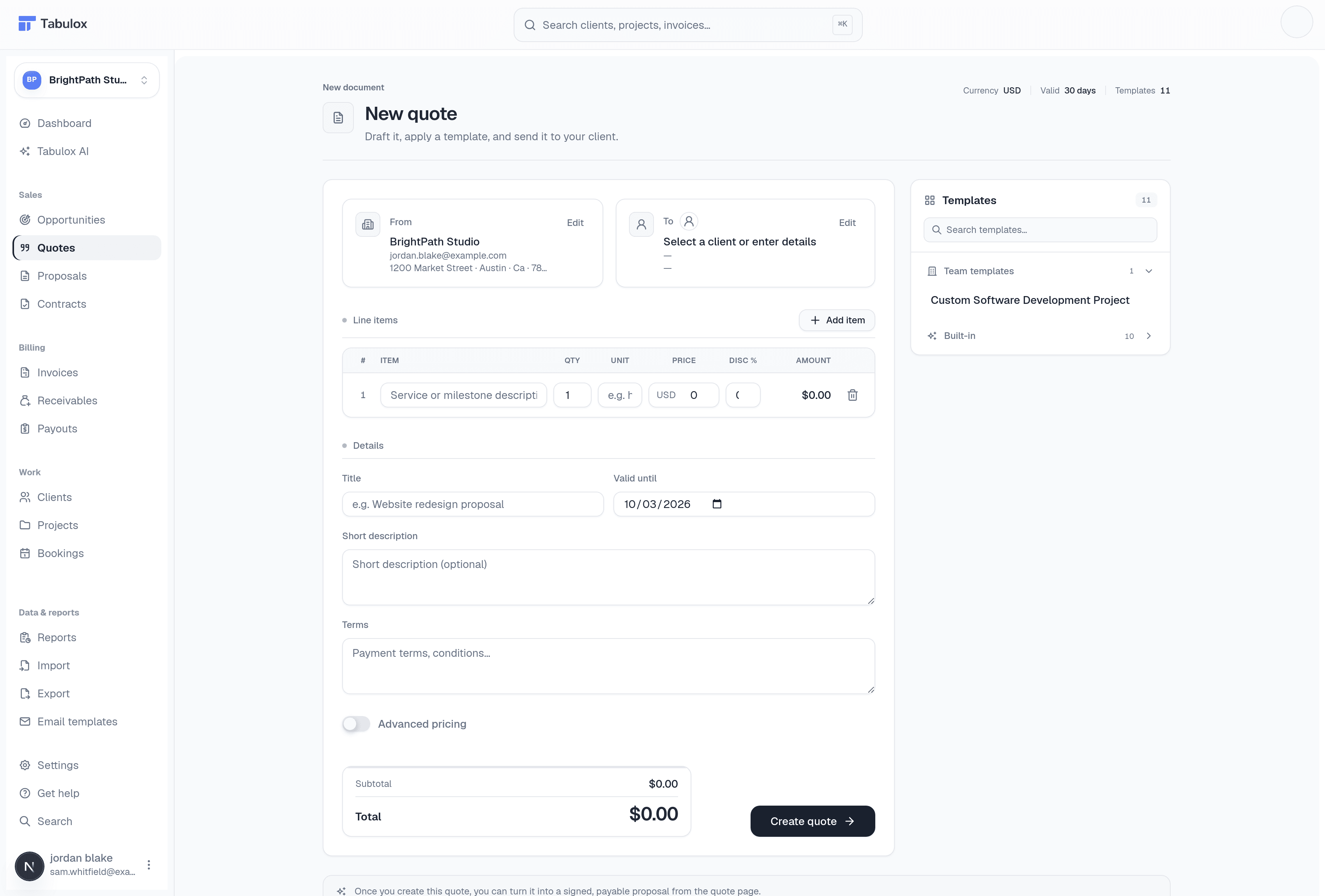
- From / To
From is your business info, already filled in and editable. To is the client — search for an existing one or type in new details by hand if they're not in Tabulox yet.
- Line items
Add as many as the quote needs — description, quantity, unit (e.g. "hours", "flat", "mo"), and price. The amount column totals itself.
- Details
Title (what shows on the document), an optional short description, payment terms, tax rate, and how many days the quote stays valid before it expires.
The Templates panel on the right applies a starter structure (line items, terms, pricing model) in one click — faster than building a recurring quote type from scratch every time.