Tabulox AI
Tabulox AI is an assistant that knows your workspace — your clients, invoices, quotes, proposals, contracts, projects and pipeline. Ask it a question in plain words ("which invoices are overdue?", "catch me up on Northwind") or hand it a task ("draft a proposal for a five-page website from this brief"), and it does the looking up and the first draft for you.
Nothing is sent without you. Tabulox AI saves what it makes as a draft for you to review, and proposes contract changes as tracked changes you accept or reject. Emails it writes are drafts you send yourself.
Two ways to use it
Beside any page
Press Ctrl/⌘+J, or click Tabulox AI at the top right, and it opens beside the page you're on. The page moves over to make room, so you can keep working while you talk. On a phone it opens as a drawer from the bottom of the screen.
On a client, invoice, quote, proposal, contract, project or opportunity, it knows what you're looking at. A Looking at … line at the top names the record, and the suggestions are for that record — "Draft a friendly reminder for this invoice", "Make a copy of this invoice for next month". When you say "this one", it means the record on screen. Click the × on that line if you'd rather it didn't use the page.
When Tabulox AI changes something — records a payment, adds a task, creates a draft — the page behind it refreshes, so you see the change straight away.
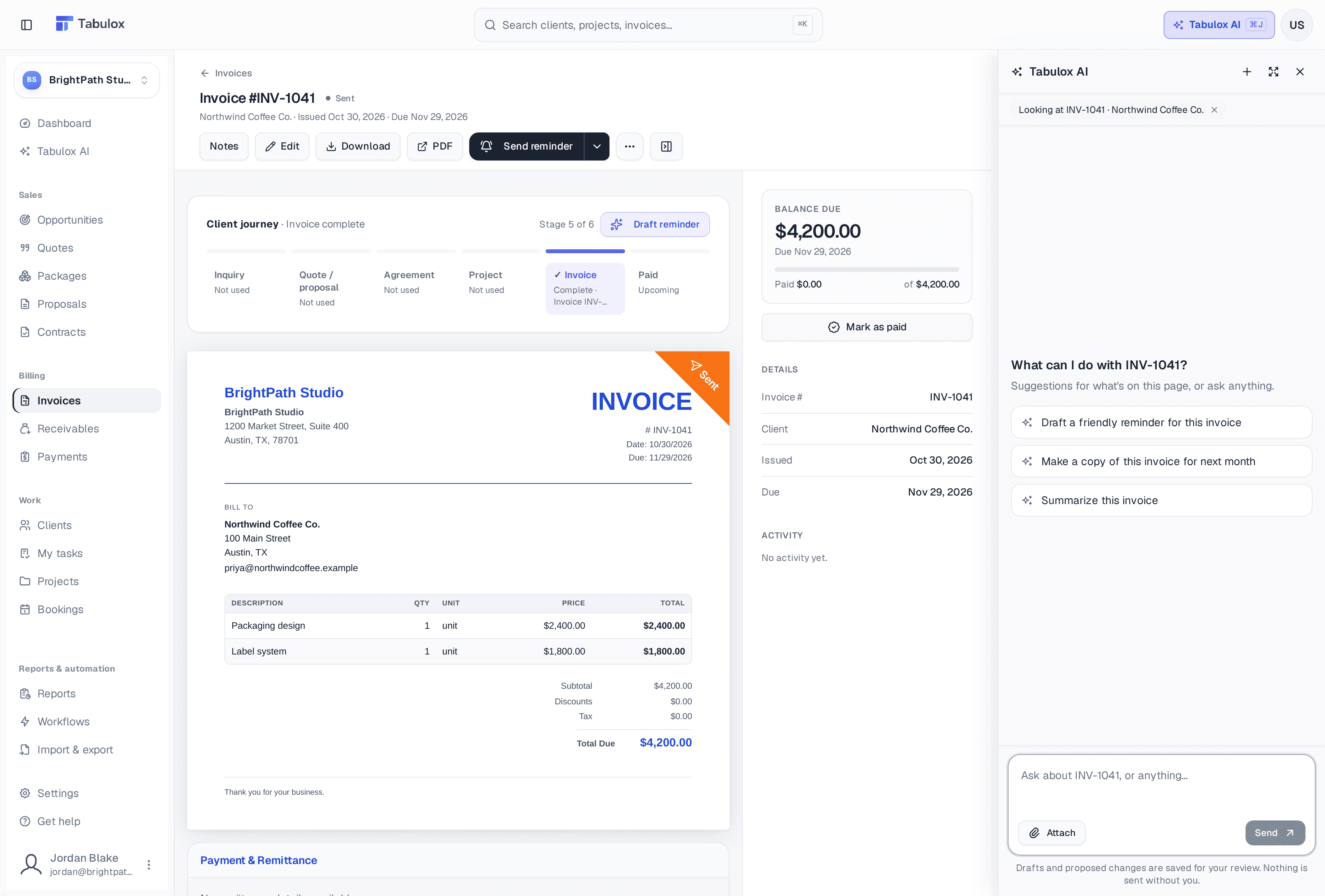
At the top of the panel: + starts a new chat, the expand button opens the same chat in the AI Studio, and × closes the panel. A chat stays as you move between pages, until you start a new one.
The AI Studio
Tabulox AI in the sidebar opens the full-page AI Studio. It has more room for long work — a proposal from a brief, a project scoped into phases — plus your past conversations on the right, a list of what it can do, and how many AI credits are left this month.
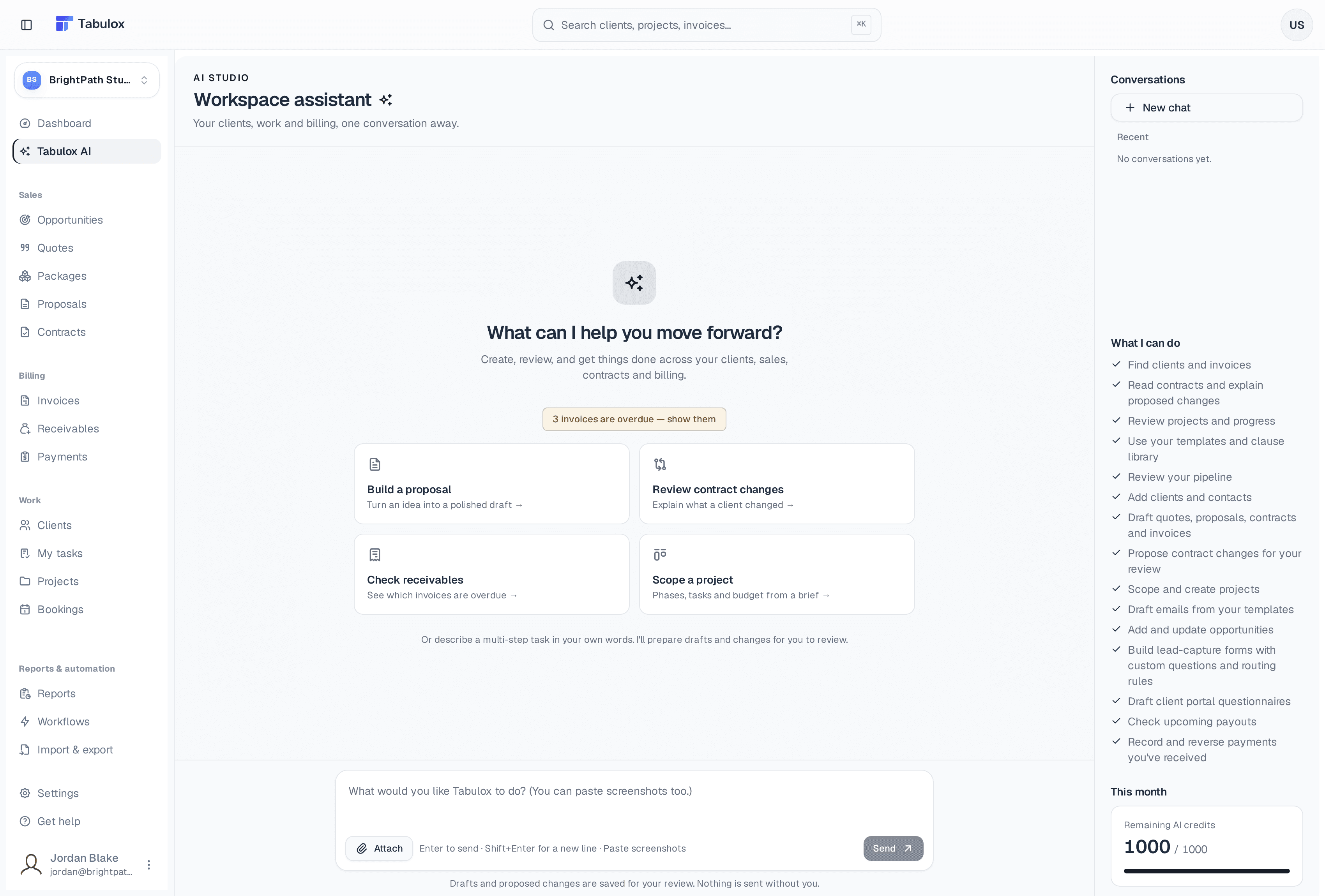
Many buttons around the app start here too. The purple AI buttons on the Dashboard — Plan my week, Who to reconnect with, Suggest next steps, Draft follow-ups — open Tabulox AI with the request already written, ready for you to edit or send.
What it can do
- Answer questions
Find clients and invoices, review projects and their progress, look through your pipeline, read contracts and explain what a client changed, summarize website form and client portal responses, and check upcoming payouts.
- Draft documents
Quotes, invoices, proposals and contracts — designed like the ones you'd make yourself, and using your own templates and clause library when you have them. It can also copy an invoice exactly, for example for next month.
- Set up work
Add clients and contacts, scope a project into phases, tasks and a budget, add and update opportunities and their follow-up tasks, draft website forms (questions and routing rules included), client portal questionnaires, and package pages.
- Write emails
Draft emails from your email templates — follow-ups, reminders, check-ins — for you to review and send.
- Record money you've received
Record a payment that came in outside Tabulox (a check, a bank transfer) against the right invoice, or reverse one recorded by mistake.
- Propose contract changes
Suggest edits to a contract as tracked changes, which you accept or reject.
It creates one record per request, so it never makes ten invoices when you meant one. For a bigger job, ask for the next piece once you've checked the first.
Attach files
Click Attach (or paste a screenshot straight into the message box) to give Tabulox AI something to work from — a client's brief, an old quote, a screenshot of an email. PDFs, images (PNG, JPEG, GIF, WebP), Word documents and plain text work, up to 4 MB each and five per message.
What teammates can do
Tabulox AI only offers what someone's role allows:
- Viewers can ask questions; they can't create or change anything.
- Members can also have drafts made and records added or updated.
- Admins and owners can also record and reverse payments and check payouts.
AI credits
Each message uses AI credits from your workspace's monthly allowance. A question costs 1 credit. Bigger drafts cost a little more: a quote, a form, a package page or contract changes cost 2, and a proposal, contract or project costs 3. A message costs whichever is higher, not both.
| Plan | AI credits each month |
|---|---|
| Core | Not included |
| Tabulox AI | 100 |
| Pro | 300 |
| Scale | 1,000 |
| Free trial | 20 |
Credits are shared by everyone in the workspace and refill on the 1st of each month. The AI Studio shows how many are left under This month.
On the Pro and Scale plans you can also connect Claude, ChatGPT, Claude Code or Cursor to your workspace, so they can look things up and make drafts in Tabulox too. See Settings → Connected apps.