Late fees & autopay
Two ways to get paid with less chasing: late fees give clients a reason to pay on time, and autopay means some of them don't have to remember at all. Both are off until an admin turns them on, in Settings.
Late fees
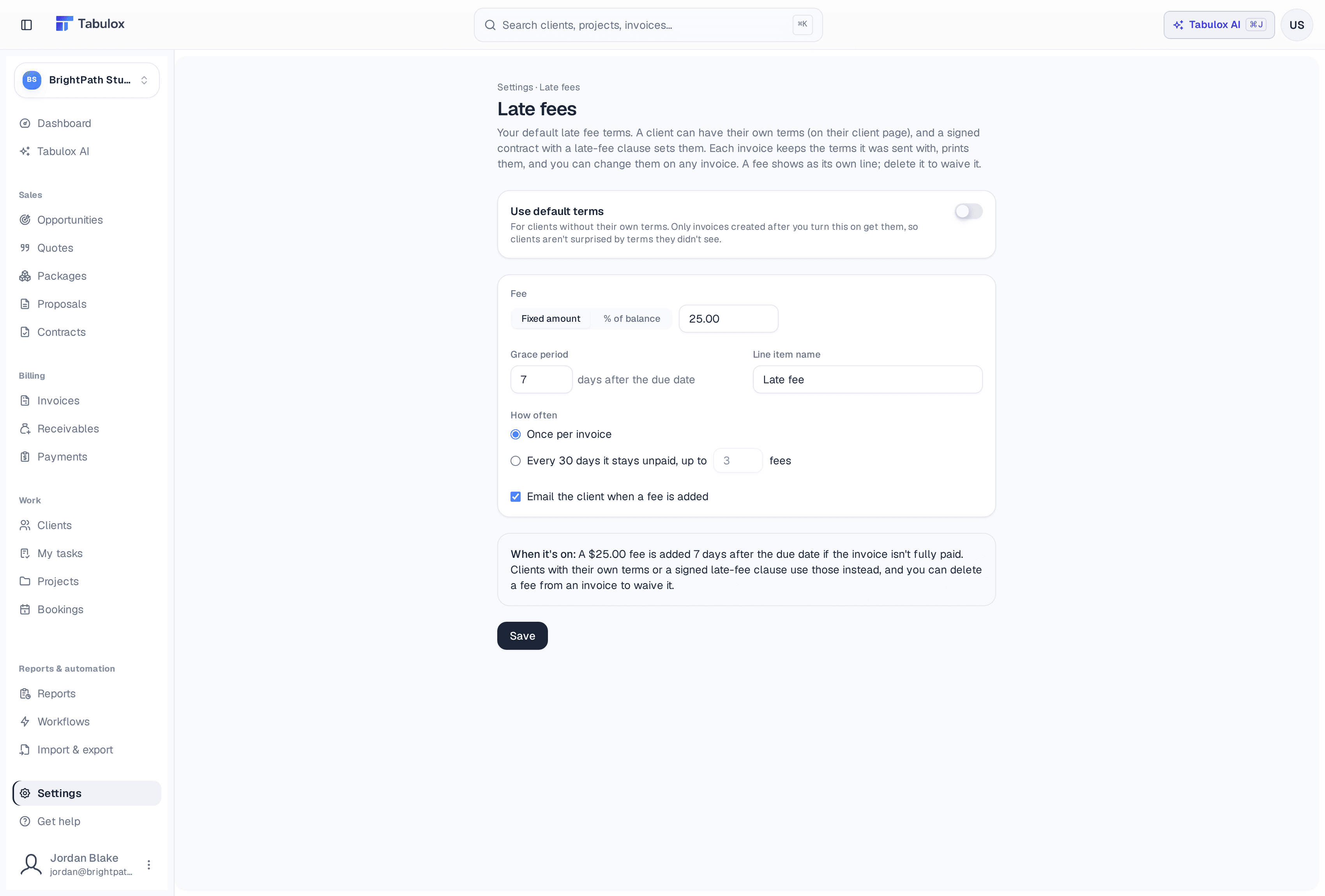
Settings → Late fees sets your default late fee terms.
- The fee
A fixed amount (e.g. $25.00) or a % of the balance, and the name it appears under on the invoice ("Late fee").
- Grace period
How many days after the due date before a fee is added.
- How often
Once per invoice, or every 30 days it stays unpaid, up to a limit you set.
- Tell the client
Optionally email the client when a fee is added.
Turn on Use default terms to apply them. The box under the settings sums up exactly what will happen ("A $25.00 fee is added 7 days after the due date if the invoice isn't fully paid").
Whose terms apply
Each invoice uses the first of these that applies:
- A signed contract with a late-fee clause (see Contracts) — signing it sets that client's terms.
- The client's own terms, set on their page: default terms, no late fees, or custom terms.
- Your default terms above.
An invoice keeps the terms it was sent with, prints them on the web invoice and PDF, and you can change them on any single invoice. Later changes to your defaults don't touch invoices already sent.
How fees are added
Once a day, Tabulox checks overdue invoices and adds the fee as its own line item, then re-totals the invoice. Only invoices created after you turned the terms on get them, so clients aren't surprised by terms they didn't see. Paid, draft, voided and written-off invoices are never charged. To waive a fee, delete its line from the invoice — it won't come back.
Autopay
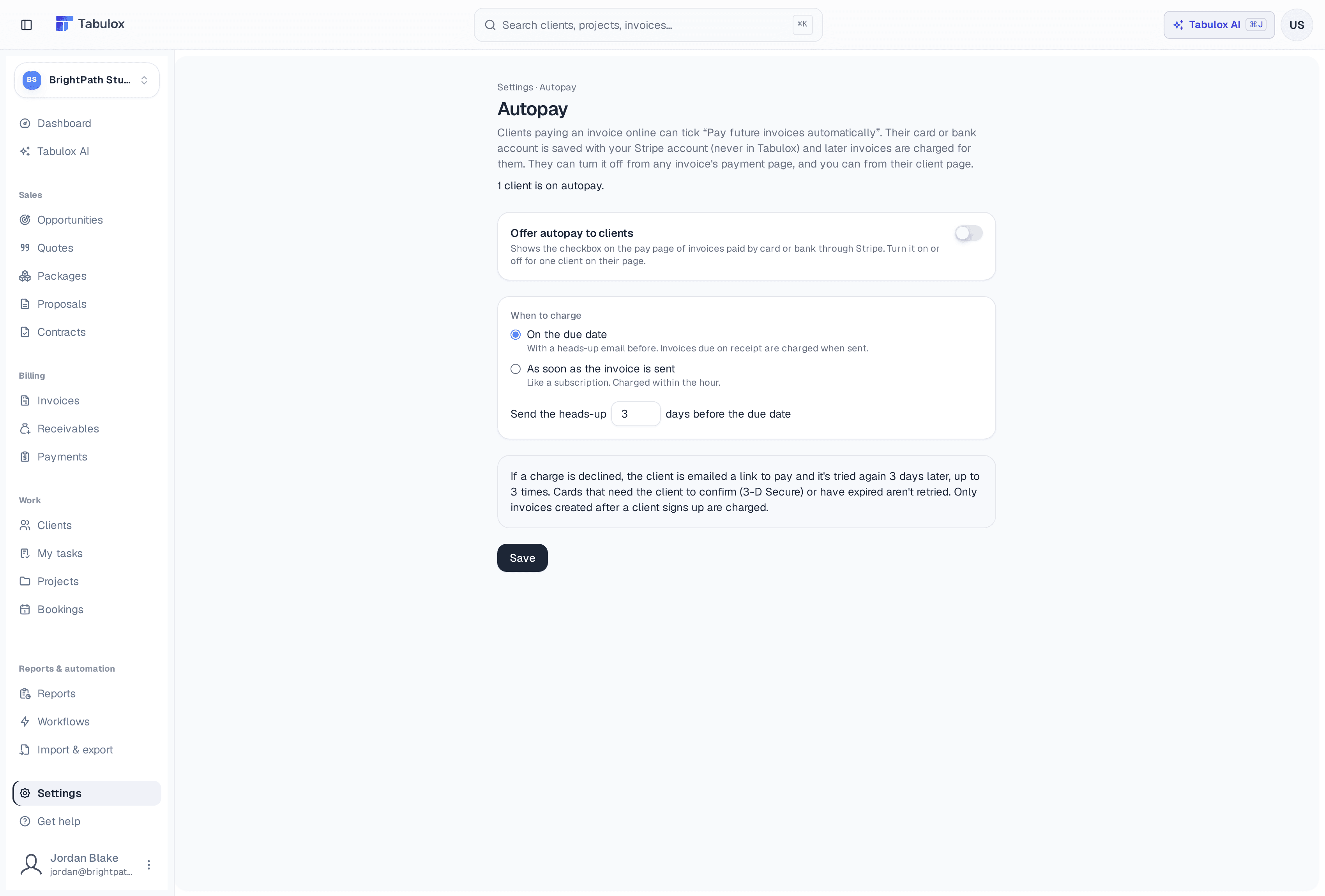
Settings → Autopay lets clients pay future invoices automatically.
How clients sign up
With Offer autopay to clients on, the pay page of an invoice paid by card or bank through Stripe shows a Pay future invoices automatically tick box. The card or bank account is saved with your Stripe account — never in Tabulox — along with the client's consent. You can also send a client a set-up link from the Autopay card on their page.
When they're charged
- On the due date — with a heads-up email a few days before (you choose how many). Invoices due on receipt are charged when sent.
- As soon as the invoice is sent — like a subscription; charged within the hour.
You can choose differently for one client on their page. Only invoices created after a client signs up are charged.
The invoice shows the saved method and when it will be charged — "Autopay · Visa ending 4242, charged November 29" — see Invoices.
If a charge fails
The client is emailed a link to pay, and the charge is tried again 3 days later, up to 3 times. Cards that need the client to confirm (3-D Secure) or that have expired aren't retried.
Turning it off
Clients can turn autopay off from any invoice's pay page, and you can turn it off for them from their client page.
Monthly packages bill each month on their own, and with autopay on, they're paid on their own too.